
Home » Posts tagged 'Android'
Tag Archives: Android
Black Box Testing of Android source code using Robotium
1 Black Box Testing of Android source code using Robotium
1.1 Introduction
Robotium is a test framework created to make it easy to write powerful and robust automatic UI test cases for Android applications. With the support of Robotium, test case developers can write function, system and acceptance test scenarios, spanning multiple Android activities. Robotium tests can be run on both emulator and device. Robotium has full support for Activities, Dialogs, Toasts, Menus and Context Menus.
1.2 Requirements
1. Android application apk file for Testing. Ex: SimpleActivity.zip
2. Eclipse for building Test project
3. ADT (Android Development Tools)
4. SDK (Software Development Kit)
5. JDK (Java Development Kit)
6. robotium-solo-3.5.1.jar
1.3 Benefits of Robotium
1. Easy to write
2. Shorter code
3. Automatic timing and delays
4. Automatically follows current Activity
5. Automatically finds Views
6. Automatically makes own decisions, e.g. when to scrolls
7. Test execution is fast
8. You can develop powerful test cases, with minimal knowledge of the application under test.
9. The framework handles multiple Android activities automatically.
10. Minimal time needed to write solid test cases.
11. Readability of test cases is greatly improved, compared to standard instrumentation tests.
12. Test cases are more robust due to the run-time binding to GUI components.
13. Blazing fast test case execution.
14. Integrates smoothly with Maven or Ant to run tests as part of continuous integration.
1.4 Installation
Robotium is downloaded as a single JAR file, which can be placed in any folder.
To actually start using Robotium, the JAR must only be put in the classpath of the test project. It can be downloaded from http://robotium.googlecode.com/files/robotium-solo-3.2.1.jar After you download this jar file you need to add this jar file to your test project. First create the test project by File -> New -> Other ->Android test project
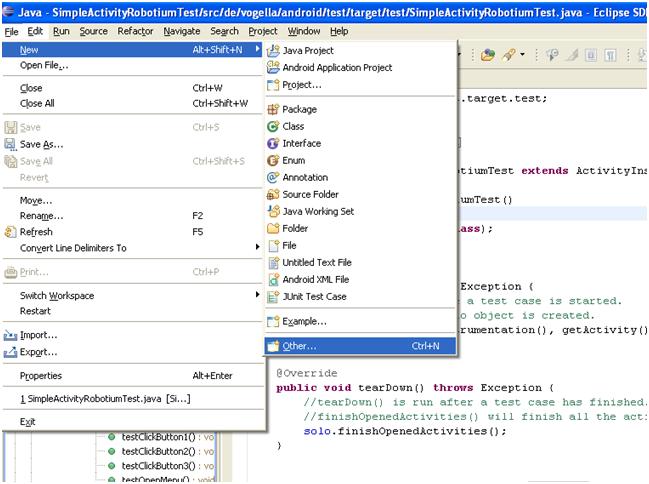
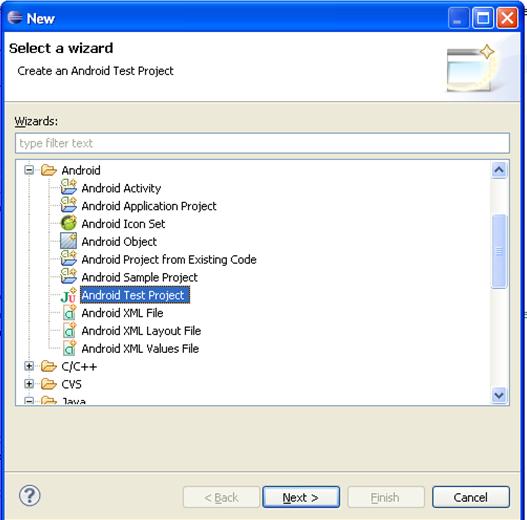
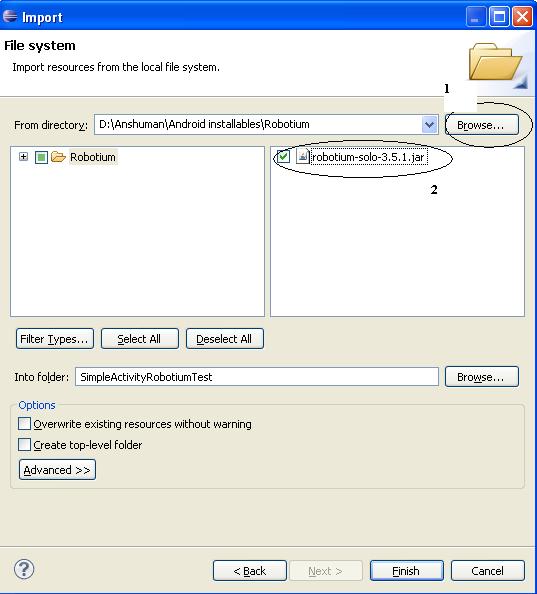
To use Robotium, you need to add the Robotium jar to the build path of your test project. First import the Robotium jar file to your project by right clicking your project and import -> General -> File System -> Next
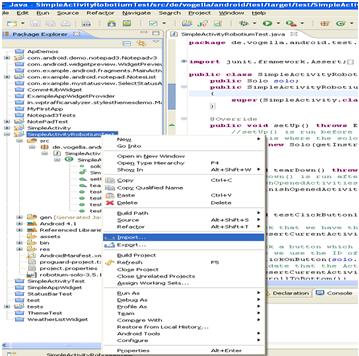
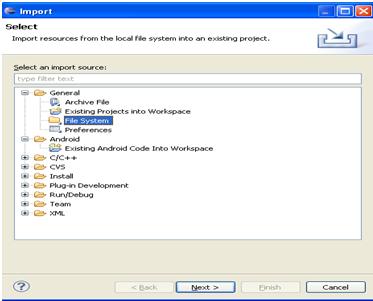
After clicking on next import dialog box opens up
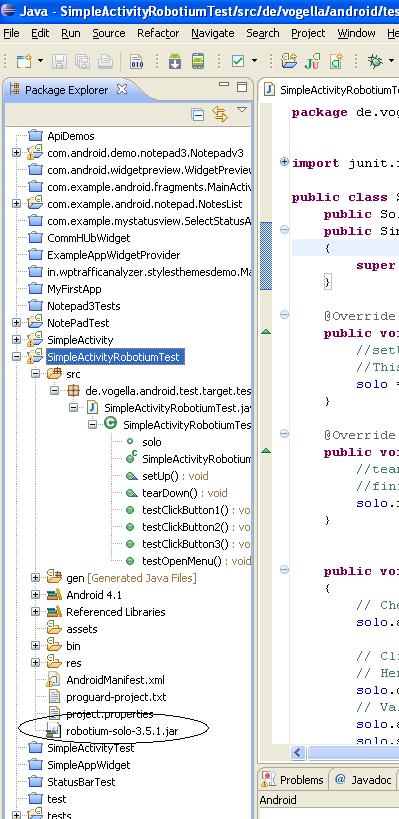
If import is successful you will find the jar file in your project structure
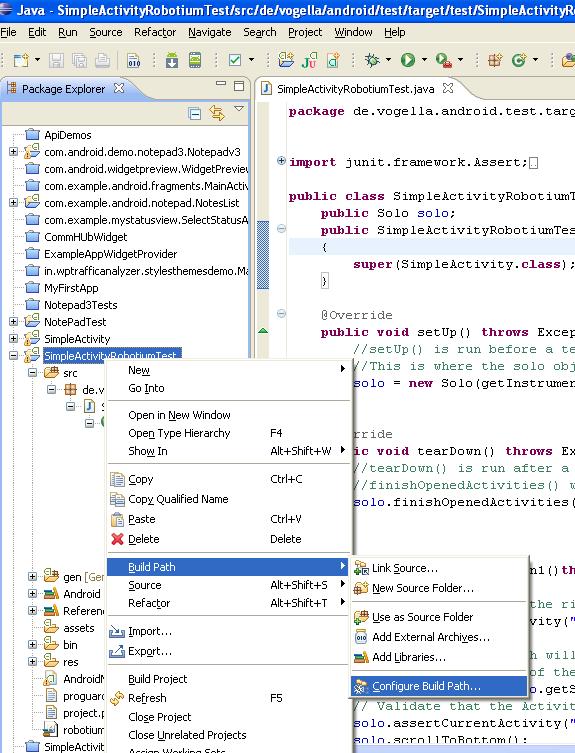
To use Robotium, you need to add the Robotium jar to the build path of your test project. In Eclipse that is done by right clicking on the test project –> Properties –> Java Build Path –> Add (external) Jar. Or
Right click on the project in the eclipse then choose build path and then choose configure build path
Then the build path opens up
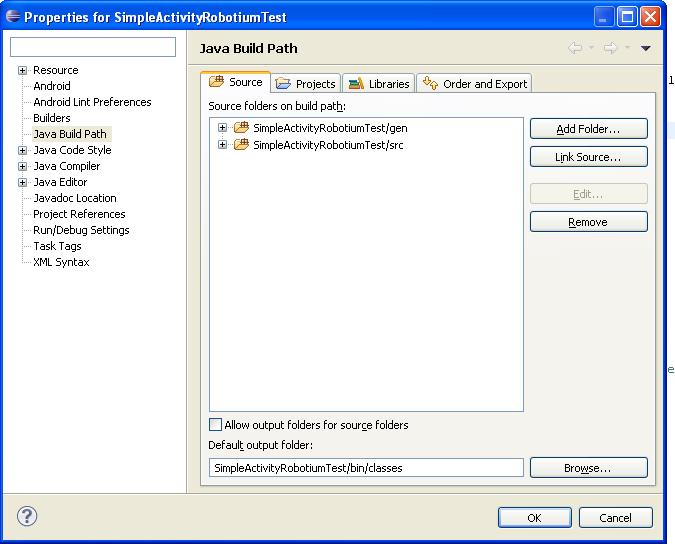
Go to libraries and then click on Add External Jar
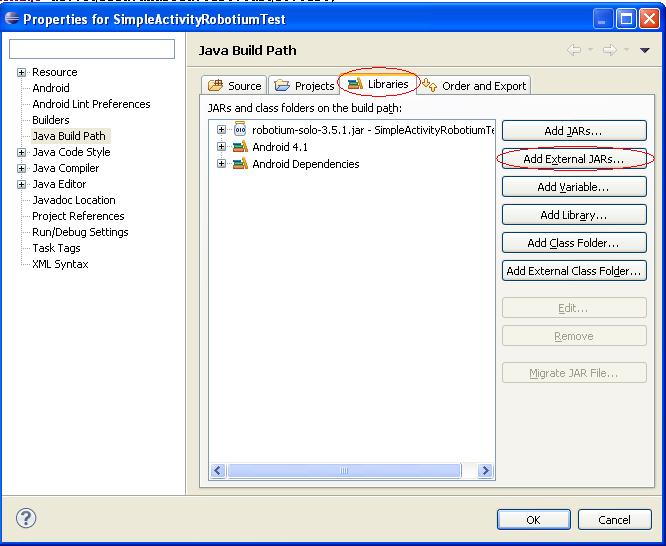
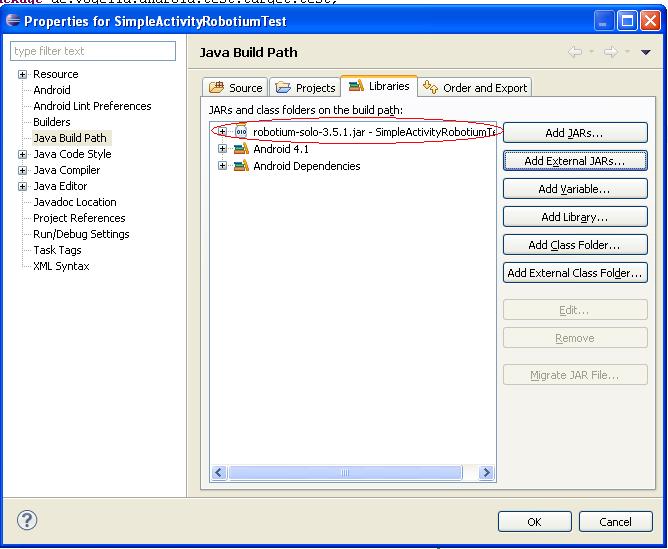
A dialog box opens up and browse to the place where robotium-solo-3.5.1 jar file is present and then select it. After adding the jar the jar file is shown in the libraries list.
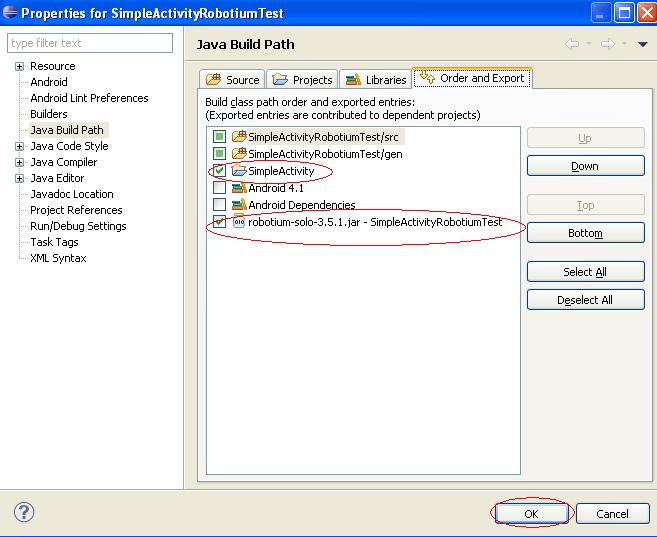
After this go to the order and Export tab and check the jar file and also the project you want to test and click ok
1.5 How to use Robotium?
Once you are finished with setting up the enviornment, now you can use Robotium inside your test project source code.First you need to create your test class by extending the Instrumentation class
public class SimpleActivityRobotiumTest extends ActivityInstrumentationTestCase2<SimpleActivity> {
Inside your test class declare a variable for the Robotium main class Solo, which we are using throughout the testing later
public Solo solo;
Initialize the constructor with your test class
public SimpleActivityRobotiumTest()
{
super(SimpleActivity.class);
}
SimpleActivity.class – This is the activity you are going to start when the test is started.
Implement the setup method for initial startups. You will create a new Solo object with the instrumentation and the given activity.
@Override
public void setUp() throws Exception {
//setUp() is run before a test case is started.
//This is where the solo object is created.
solo = new Solo(getInstrumentation(), getActivity());
}
@Override
public void tearDown() throws Exception {
//tearDown() is run after a test case has finished.
//finishOpenedActivities() will finish all the activities that have been opened during the test execution.
solo.finishOpenedActivities();
}
Now implement your testing with your own methods. You can use the solo object to send various event types to your appilcation. Following is a sample method in which it shows how to send events.You can also find all the features that robotium supports in robotium-solo-3.5.1-javadoc.zip ( see the repository section for the file)
public void testClickButton1()throws Exception
{
// Check that we have the right activity
solo.assertCurrentActivity(“wrong activiy”, SimpleActivity.class);
// Click a button which will start a new Activity
// Here we use the ID of the string to find the right button
solo.clickOnButton(solo.getString(R.string.button1));
// Validate that the Activity is the correct one
solo.assertCurrentActivity(“wrong activiy”, SimpleListActivity.class);
solo.scrollToBottom();
solo.scrollToTop();
solo.clickInList(1);
// searchForText has a timeout of 5 seconds
assertTrue(solo.waitForText(“Android”)); // Assertion
solo.clickInList(2);
assertTrue(solo.waitForText(“iPhone”)); // Assertion
solo.clickInList(3);
assertTrue(solo.waitForText(“Blackberry”)); // Assertion
solo.goBack();
}
public void testClickButton2() throws Exception
{
// Check that we have the right activity
solo.assertCurrentActivity(“wrong activiy”, SimpleActivity.class);
solo.clickOnButton(“Button2”);
assertTrue(solo.waitForText(“Button 2 clicked”));
solo.goBack();
//Thread.sleep(60000);
}
public void testClickButton3() throws Exception
{
// Check that we have the right activity
solo.assertCurrentActivity(“wrong activiy”, SimpleActivity.class);
solo.clickOnButton(“Button3”);
assertTrue(solo.waitForText(“Button 3 clicked”));
solo.goBack();
}
public void testOpenMenu() throws Exception
{
// Open the menu
solo.sendKey(Solo.MENU);
solo.clickOnText(“Preferences”);
solo.clickOnText(“User”);
solo.clearEditText(0);
Assert.assertTrue(solo.searchText(“”));
solo.enterText(0, “http//:www.vogella.com”);
Assert.assertTrue(solo.searchText(“http//:www.vogella.com”));
solo.goBack();
}
Link for the sample project SimpleActivityRobotiumTest.zip that uses the robotium for testing the project SimpleActivity.zip is
 TheIntRendz